HWP to PDF on iPhone
When you need it
- Sending a document to someone without a Hangul word processor
- Printing a Hangul document you received
- Sending pages as pictures that show directly in a chat
Get HWP Viewer on the App Store
PDF export and printing are free. Only PDFs and page images of signed documents use form saves (three free, then the lifetime unlock).
The app's interface is in Korean; the Korean menu names are given below in quotes.
Save as PDF
- Open the Hangul file in HWP Viewer (share button → “HWP 뷰어”, or the app's Browse tab for files in Files).
- Tap “더 보기” (…) → “PDF로 저장·공유”.
- A PDF is made exactly as the pages appear on screen, and the share sheet opens: save it to Files or send it with a messenger or Mail.
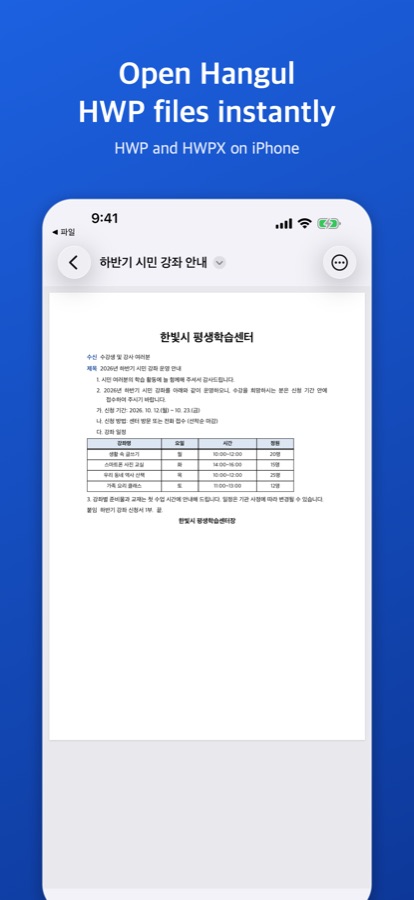
In the share sheet after “PDF로 저장·공유”, choose Print to use an AirPrint printer.
Pages as images
“더 보기 › 쪽 이미지로 공유” makes one PNG picture per page (up to 30 pages, at twice the page size), which shows directly in chats.
On a Mac
Use “PDF로 내보내기” (export PDF) and “프린트” (print) in the window's toolbar. See Open HWP files on iPad and Mac.
FAQ
Do tables and pictures come out right?
The PDF is made from the pages as shown in the app, so tables, pictures and page numbers match the screen. The view itself can differ slightly from the original because of fonts; check important PDFs before sending.
Can I turn a PDF into a Hangul file?
Yes — on the first screen, “PDF·사진을 한글 파일로” (iOS 26 or later, three free conversions). See the Korean guide.